
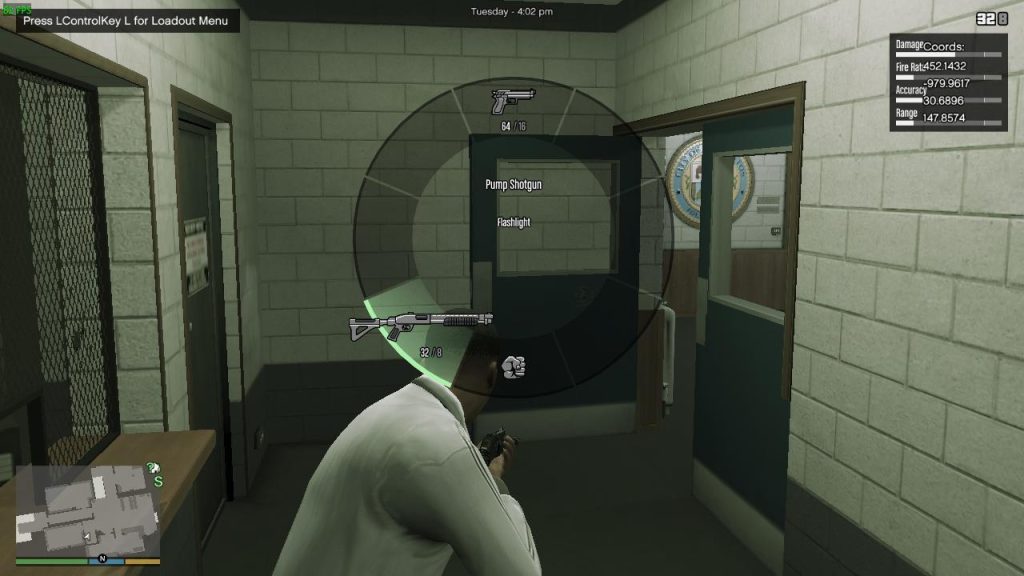
RageNativeUI is a popular and lightweight user interface library used in GTA V modding, especially for those working with RAGE Plugin Hook. It is best known for powering interactive menus in many police and roleplay mods, allowing modders to create clean, structured, and user-friendly in-game interfaces. These menus typically contain options like lists, toggles, sliders, and submenus, all designed to help players interact more efficiently with mods without needing to rely on complex keybinds or command-line inputs.
This tool has become almost a standard for developers of mods like LSPDFR or vehicle control plugins. RageNativeUI enables users to build menus that feel native to GTA V’s interface, maintaining consistency and ensuring player familiarity. Despite its ease of use and widespread adoption, many developers wonder if this tool allows for deeper customization in terms of fonts, icons, and colors.
Why UI Customization Matters in GTA V Mods
User interface customization in any game mod is more than just about aesthetics. A thoughtfully designed UI enhances the mod’s professionalism, usability, and overall player immersion. When menus match the tone and theme of the mod, they reinforce the intended gameplay experience—whether it is law enforcement realism, futuristic technology, or casual utility.
Customizing menus helps developers maintain branding consistency, especially for mods meant to reflect real-world agencies or unique fictional settings. It also allows for better accessibility by adjusting colors for readability or personal preferences. However, the question remains common among developers: Is it possible to fully style RageNativeUI menus with custom fonts, icons, and color themes?
Customize RageNativeUI Menus?
Default Styling Limitations of RageNativeUI
By default, RageNativeUI adopts a design philosophy that aligns closely with GTA V’s existing interface. This means that its standard appearance is simple, familiar, and functional but not particularly flexible for those seeking unique visual designs. The library leans on GTA V’s internal rendering systems, offering only surface-level changes through configuration rather than deep stylistic overhaul.
Some key limitations include:
- Pre-defined fonts tied to GTA V’s internal font library.
- Icons limited to existing GTA V texture dictionaries.
- Restricted color scheme modifications within certain parameters.
While these defaults ensure stability and consistency, they can frustrate developers looking to inject more personality or branding into their mods.
Supported Customizations in RageNativeUI
Despite these constraints, there are still several elements within RageNativeUI that can be customized to help tailor the user experience visually. Developers can modify the color palette, reposition menus, and adjust the size and alignment of text. These customizations, while somewhat basic, still allow a menu to reflect different styles or themes.
Here’s a brief breakdown of what is typically adjustable:
- Menu background colors, allowing changes from default grey tones to darker or brighter shades.
- Highlight bar colors, giving options to align with a mod’s theme or improve visibility.
- Text colors for both active and inactive states, ensuring better readability or stylistic alignment.
- Menu positioning and sizing for fitting within custom HUD layouts.
- Alignment choices between centered or left-aligned text.
However, these modifications do not extend to core elements like introducing new fonts or freely placing graphical icons without specific workarounds.
How to Change Colors in RageNativeUI
Changing Background Colors
One of the simplest and most effective ways to differentiate a RageNativeUI menu is through background color customization. Modders often adjust these colors to match darker or more neutral tones, fitting various thematic designs such as realistic law enforcement mods or futuristic sci-fi interfaces.
Modifying Highlight Colors
Highlight bars are essential for guiding the user’s eyes as they navigate through menu items. While the default is often a GTA V-inspired blue, developers frequently change these to more vibrant or thematically appropriate colors, such as red for emergency mods or green for eco-friendly themes.
Adjusting Text Colors
Text color customization improves both readability and aesthetics. Clear, high-contrast text ensures users can navigate menus comfortably, especially on different screen setups or in varied lighting conditions. Developers usually modify these colors to create differentiation between selected and disabled options, which contributes to accessibility and a cleaner design.
Practical Approach to Menu Styling
Through thoughtful use of color adjustments, developers can subtly transform the appearance of their menus. While the core structure remains familiar, personalized colors for backgrounds, highlights, and text give each mod its own distinct visual identity. These changes do not require deep programming knowledge and are typically set within the initialization phase of the menu creation.
Fonts and Icons: What’s Possible?
Why Fonts Are Limited
The core limitation with fonts in RageNativeUI stems from its reliance on GTA V’s built-in font resources. Unlike web development or desktop applications where custom font files can be easily embedded, GTA V modding through RageNativeUI ties you strictly to the fonts Rockstar has already included within the game engine. This constraint exists for both technical stability and to maintain visual consistency with the rest of the game’s UI.
Fonts available are generally limited to variations like Chalet London, Pricedown, and others Rockstar uses across in-game menus and HUD elements. While functional, this selection is far from exhaustive and may not meet every developer’s creative needs.
Workarounds for Fonts
For developers determined to introduce custom font appearances, indirect workarounds exist. One method involves creating sprite-based text images and integrating these as graphical elements rather than traditional text. This approach requires manually generating textures for every string or character needed, which is time-intensive and impractical for most dynamic menus.
Another technique is overlaying custom 2D graphics using drawing functions provided by RAGE Plugin Hook. These overlays allow for headers, banners, or static text that deviate from the menu’s standard fonts but come at the cost of added complexity and maintenance.
Icons in RageNativeUI
How to Add Custom Icons
RageNativeUI handles icons through sprites sourced from GTA V’s existing texture dictionaries. If a developer wants to include unique icons that reflect their mod’s branding or functionality, they must create custom texture dictionaries and load them appropriately. This process requires understanding GTA V’s texture management and is generally only recommended for advanced users familiar with texture creation tools.
Using Built-in GTA V Icons
Most developers rely on GTA V’s extensive library of pre-made icons within standard texture dictionaries. These include common visuals like checkmarks, arrows, and category badges. While limited in creativity, these icons integrate seamlessly with the game’s UI and require no additional resources to implement.
Common reasons to use built-in icons include:
- Guaranteed compatibility with existing HUD elements.
- Reduced development time with familiar assets.
- Consistent look and feel with the base game interface.
Advanced Alternatives to Achieve Custom Styling
Using LemonUI for More Flexibility
For developers who find RageNativeUI’s styling capabilities too restrictive, LemonUI presents itself as a more advanced alternative. This library builds on similar principles but offers a wider range of customization options, including better control over fonts, colors, and overall interface design.
LemonUI supports both RAGE Plugin Hook and FiveM, making it suitable for single-player and multiplayer modding. It allows the use of texture atlases to simulate custom fonts, and developers can define detailed styling rules for every component of their menus.
Benefits of switching to LemonUI include:
- Greater creative freedom in visual design.
- Support for additional UI components like tooltips, progress bars, and tab panels.
- Improved scalability for complex mods requiring multiple interface elements.
Combining RageNativeUI with Custom 2D Rendering
Another method for achieving more bespoke UI designs involves keeping RageNativeUI for core functionality while layering additional custom graphics using GTA V’s 2D rendering tools. This approach allows developers to draw custom headers, frames, or backgrounds around standard menus, blending the simplicity of RageNativeUI with the flexibility of custom art.
Developers often choose this hybrid approach when they want to maintain the simplicity of existing menu structures while still introducing visually distinct elements.
Pros and Cons of Switching Libraries
When deciding between RageNativeUI and alternatives like LemonUI, developers must weigh their priorities. RageNativeUI is fast and straightforward but limited in styling. LemonUI offers freedom but requires more setup and learning.
Key considerations include:
- Project complexity and future expansion.
- Importance of unique visual branding.
- Development time and learning curve.
Best Practices for Styling Your Menus
Focus on Readability
Regardless of how creative or visually ambitious a menu might be, readability should always remain a top priority. High-contrast color schemes, clean fonts, and intuitive layouts ensure players can navigate your mod’s menus without confusion or strain.
Key guidelines include:
- Avoid excessively dark backgrounds with dark text.
- Ensure highlight colors are distinct from background and text colors.
- Provide visual cues for selected versus disabled items.
Match Your Theme to GTA V’s Aesthetic
Even if you aim for uniqueness, aligning with GTA V’s existing design principles can create a more immersive experience. Mods focused on realism, for example, benefit from subdued color palettes and clear, functional layouts similar to the game’s police interfaces. For more creative or sci-fi mods, brighter colors and futuristic designs might make sense.
Matching your styling to your gameplay theme enhances cohesion and user immersion.
Optimize for Performance
Visual enhancements should never come at the cost of performance. Overusing transparency effects, layering too many sprites, or loading large custom textures can negatively impact frame rates, especially during gameplay. Keep menus efficient and ensure they close cleanly to avoid lingering performance issues.
Performance-conscious design tips include:
- Limit unnecessary graphical overlays.
- Use simple, optimized textures for custom elements.
- Test menu performance across various hardware setups.
Conclusion
RageNativeUI remains a reliable choice for developers looking to create functional and visually consistent menus within GTA V mods. While its customization options are somewhat limited to adjustments in color schemes, alignment, and basic styling, these tools are often enough to create distinct, professional-looking interfaces that feel right at home within the game’s environment.